AppFlow lets you take money the way that suits each job. You connect your own payment account, so funds land directly with you, then set rules per service for when and how clients pay. This guide walks you through connecting a processor, setting deposits, taking payment in the booking widget, handling refunds and reading your finance views.
Connect your payment account
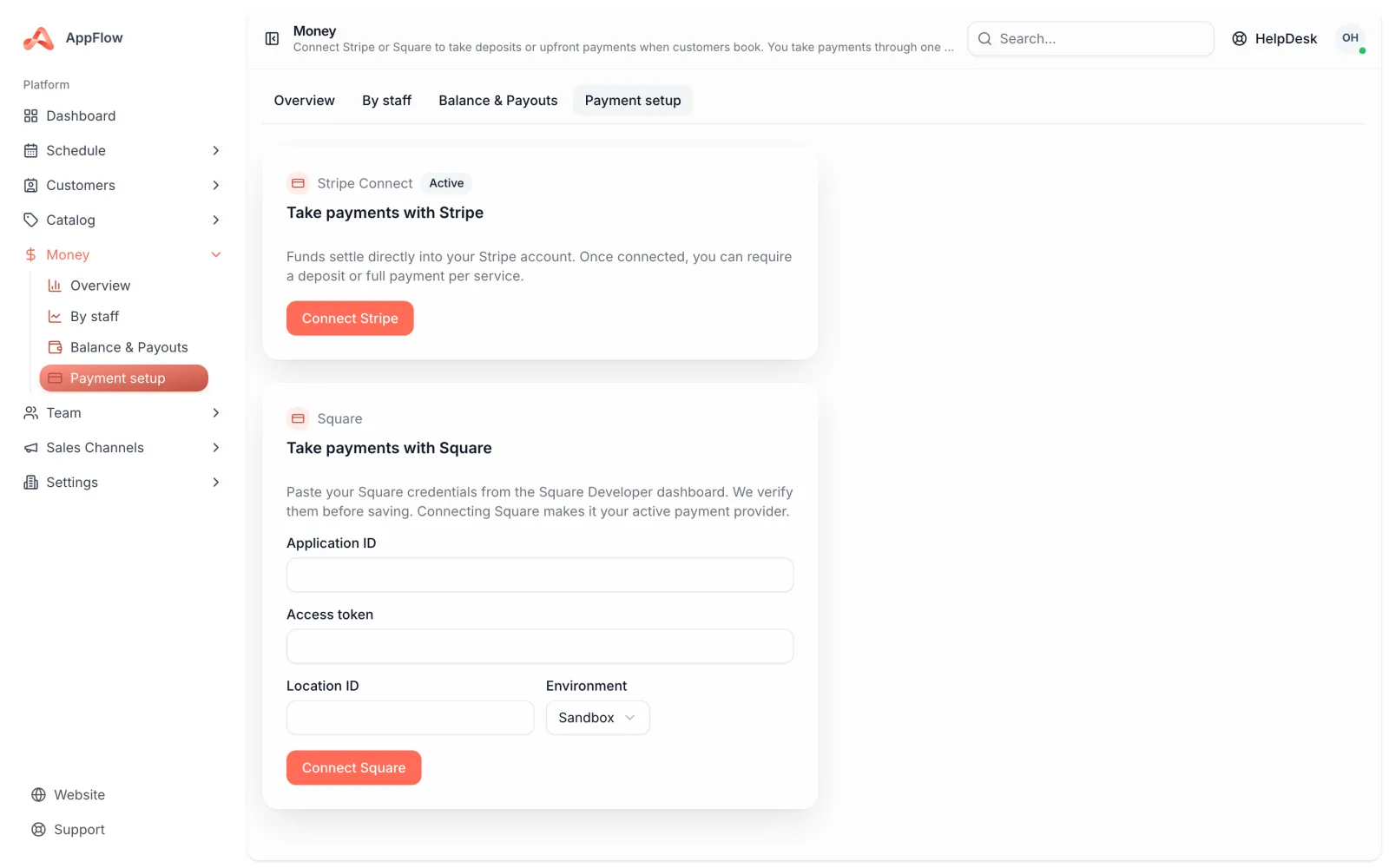
AppFlow does not hold your money. You connect your own Stripe or Square account, and every payment settles straight to you on your processor's normal schedule.
- 1
Open Payments in your owner dashboard
Go to Settings, then Payments. You will see options to connect Stripe or Square.
- 2
Choose your provider
Pick Stripe or Square, whichever you already use or prefer. You only need one, and you can take both deposits and full payments through it.
- 3
Verify your business
Follow the prompts from your provider to confirm your business and bank details. This is handled on their secure pages, so your sensitive details never sit with AppFlow.
Why your own account matters
Because payments go through your Stripe or Square account, the money is yours from the moment it clears. AppFlow simply records each charge against the booking.
Set how clients pay for each service
Every service can have its own payment rule, so you can mix and match across your menu. A quick add-on might need nothing up front, while a longer job is worth protecting with a deposit.
- No payment: clients book without paying, and you settle in person or later
- Deposit: clients pay part now to hold the slot, with the balance due later
- Pay in full: clients pay the whole amount when they book
- 1
Open a service
Go to Services, choose the one you want, and find the Payment section.
- 2
Pick the rule
Choose no payment, deposit or pay in full. For a deposit, set whether it is a fixed amount, such as 50 dollars, or a percentage, such as 25 percent of the total.
- 3
Save and repeat
Save the service, then set the rest of your menu. Clients always see what they will pay before they confirm.
How clients pay in the booking widget
Clients can pay straight inside the booking widget, so there is no separate invoice to chase. What they see depends on the rule you set for the service.
- Pay a deposit now and settle the balance later
- Pay the full amount at the time of booking
- Reserve a slot with a card held on file that you charge later
Card on file: hold now, charge later
Card-on-file reservations are handy when you want a commitment without taking money up front. The card is stored securely with your provider, and you charge it from the booking once the job is done or a cancellation rule applies.
Refunds
If you need to refund a client, AppFlow routes the refund back through the original provider automatically. A payment taken on Stripe refunds through Stripe, and a Square payment refunds through Square, so your records stay clean.
- 1
Open the booking
Find the booking with the payment you want to refund.
- 2
Choose Refund
Select a full or partial refund. AppFlow sends it back through the right provider and updates the booking and your finance views.
Read your finance views
Your owner finance views pull every charge together so you always know where you stand. For each charge, AppFlow records the processor fee and the net amount, so the numbers reflect what actually reached you.
- Finance overview: total collected, fees, net, refunds and a per-staff breakdown
- Balance and payouts: see your balance and bank payouts when you use Stripe
- My Earnings: a staff-facing view so each team member can see what they brought in
Keep it fair to clients
Show your deposit and cancellation rules up front in the widget. Clear, reasonable terms protect your time without leaving clients feeling caught out.
Was this guide helpful?
Still stuck? Contact us